
Documentation: PLP — Universal Leads Parser
Step-by-step user guide. Word version: PLP-guide-en.docx.
1. What PLP is
PLP — Universal Leads Parser (ProActOn Leads Parser) finds organizations on maps, websites, marketplaces and Telegram/VK, checks their websites, scores every lead from 0 to 100 and prepares personal email and message drafts.
This is a Windows and Linux program with a free demo and a perpetual license — not a freelance parser job and not a free database forever. PLP finds companies and their public contacts for email outreach; it is not a parser of classified ads, maps, or social-media goods.
Besides the computer app there is a web version: the same search by industry and city in the browser, with no install. Sign in through your account on plp.proacton.ru, “Web version” tab. 25 starter leads once per account; lead packs are purchased separately.
- Runs on your computer. Leads, settings and keys stay with you.
- Never sends anything on its own. Emails go out only after you confirm, in batches with pauses. WhatsApp and Telegram open with ready text; you send them yourself.
- Collects only public data about organizations. PLP never collects group or chat members and never messages them.
- Never bypasses site protection: if a source is blocked (403, captcha, anti-bot) it is marked "unavailable".
- You enter all third-party API keys yourself. Without a key, that source is simply turned off.
The app UI is available in Russian and English (header language switch). Below, Russian labels are given in quotes with an English translation where helpful.
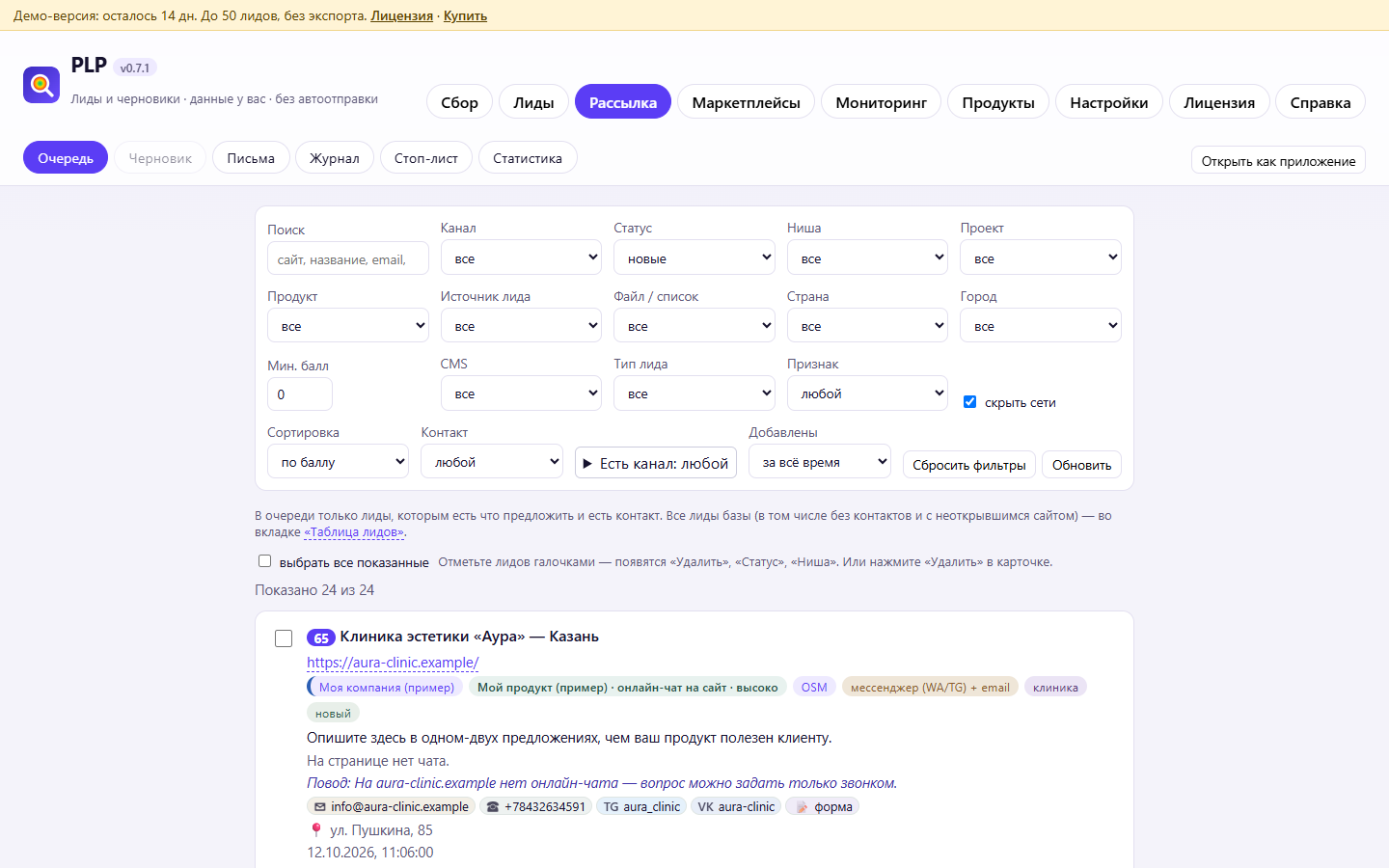
The header shows the PLP logo with caption (as on the website) plus theme (light/dark) and language (RU/EN) toggles. Top menu is the work areas: "Collection" → "Leads" (leads: table, export, trash) → "Mailing" (outreach: queue, draft, emails, log, stop list, statistics) → "Marketplaces" → "Monitoring" → "Products" (products, industries) → "AI agent". Bottom menu holds "Settings", "License" and "Help". Sections with several tabs show them on a second row. On start PLP opens Leads, or Collect if the database is empty.
2. Installation
- Download PLP-Setup-<version>.exe from the Download page at plp.proacton.ru. The page also shows the file size and SHA-256 checksum.
- Run the installer. If Windows SmartScreen shows a warning, follow the explanation below.
- Choose the install folder and wait until it finishes. A PLP shortcut appears on the desktop.
- Start PLP. On first launch the setup wizard opens and demo mode starts automatically.
Does Windows show a warning during setup?

What this window is
This is Microsoft Defender SmartScreen. It usually appears as a window titled “Windows protected your PC.” Windows uses it to warn you about programs it does not yet know well.
Why it appears
SmartScreen shows this warning for any program that is not yet widely downloaded and/or is not signed with a paid code-signing certificate from a commercial certificate authority. It judges by “reputation” — how often users have encountered the file — not by scanning for viruses. Many programs from small and independent developers get this window. Since 2024 even a certificate does not remove the warning immediately: Microsoft builds reputation over several weeks and many installations.
Is it safe?
The PLP installer is downloaded only from plp.proacton.ru over HTTPS. A SmartScreen warning is not a virus detection. If Microsoft Defender found a threat, it would block or delete the file and show a different, red message. You can also scan the file with your antivirus or on VirusTotal before running it.
How to install
- In the SmartScreen window, click “More info.”
- Check that the file name is of the form
PLP-Setup-<version>.exe(the current version is shown on the Download page). - Click “Run anyway.”
- If Chrome or Microsoft Edge warns you at download time that the file isn’t commonly downloaded, open the ⋯ menu next to the file and choose “Keep.” If the browser asks again, choose “Keep anyway.”
If you have questions
Write to us on the Support page.
Requirements: Windows 10/11 x64, 4 GB RAM, internet access for lead collection and license checks. App data lives in your user profile (%APPDATA%), not in the install folder, so updates do not touch it.
3. First-run wizard
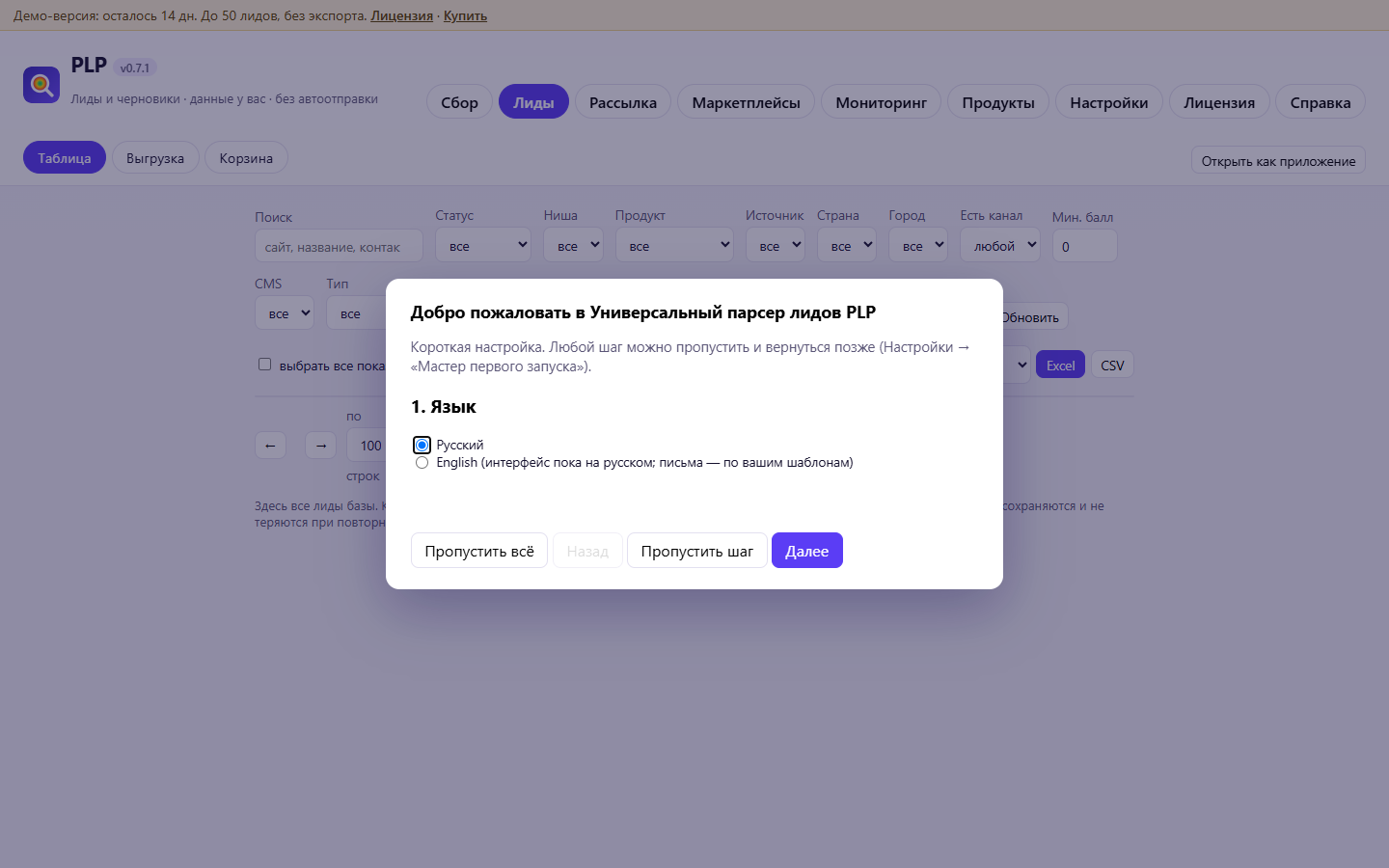
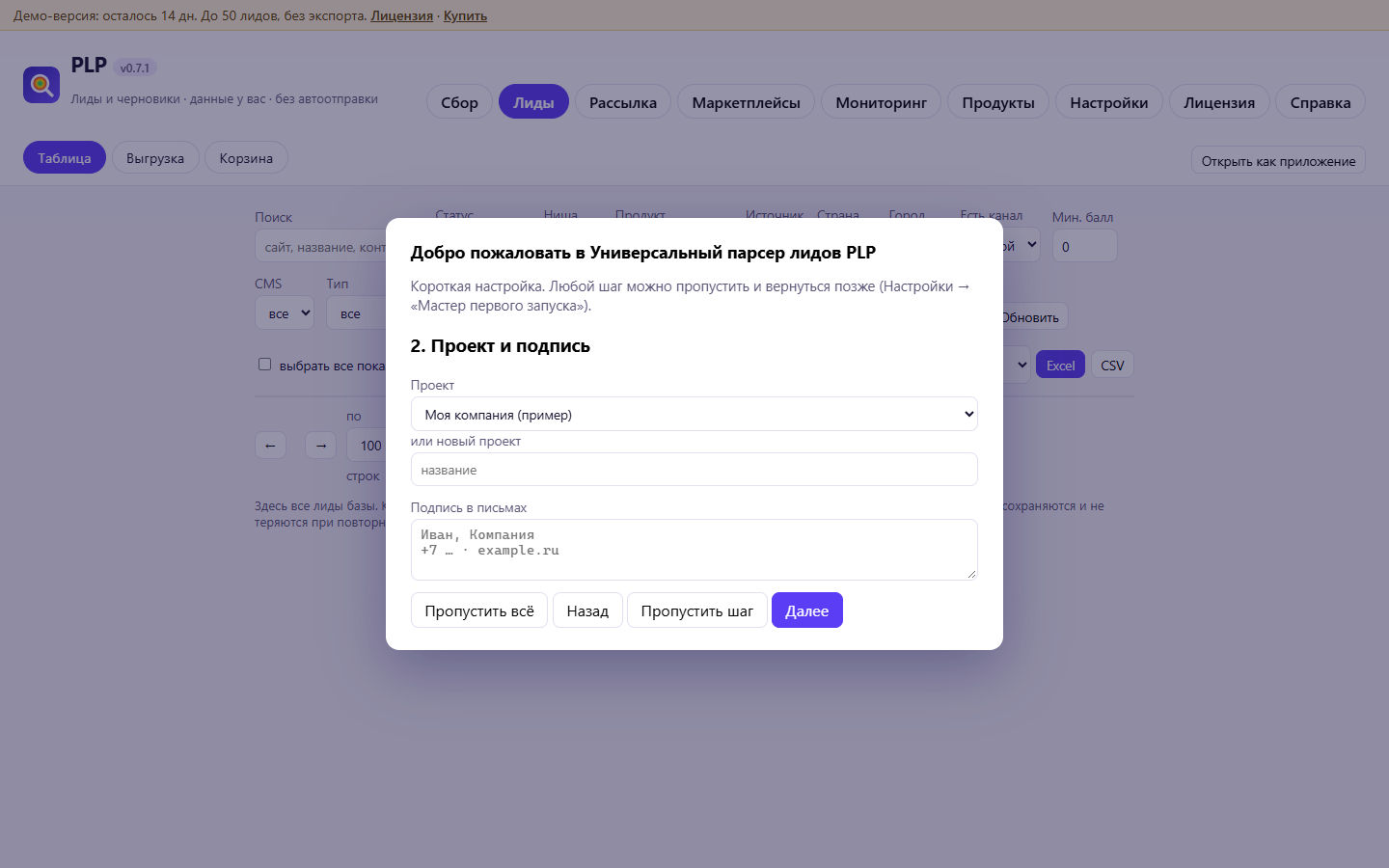
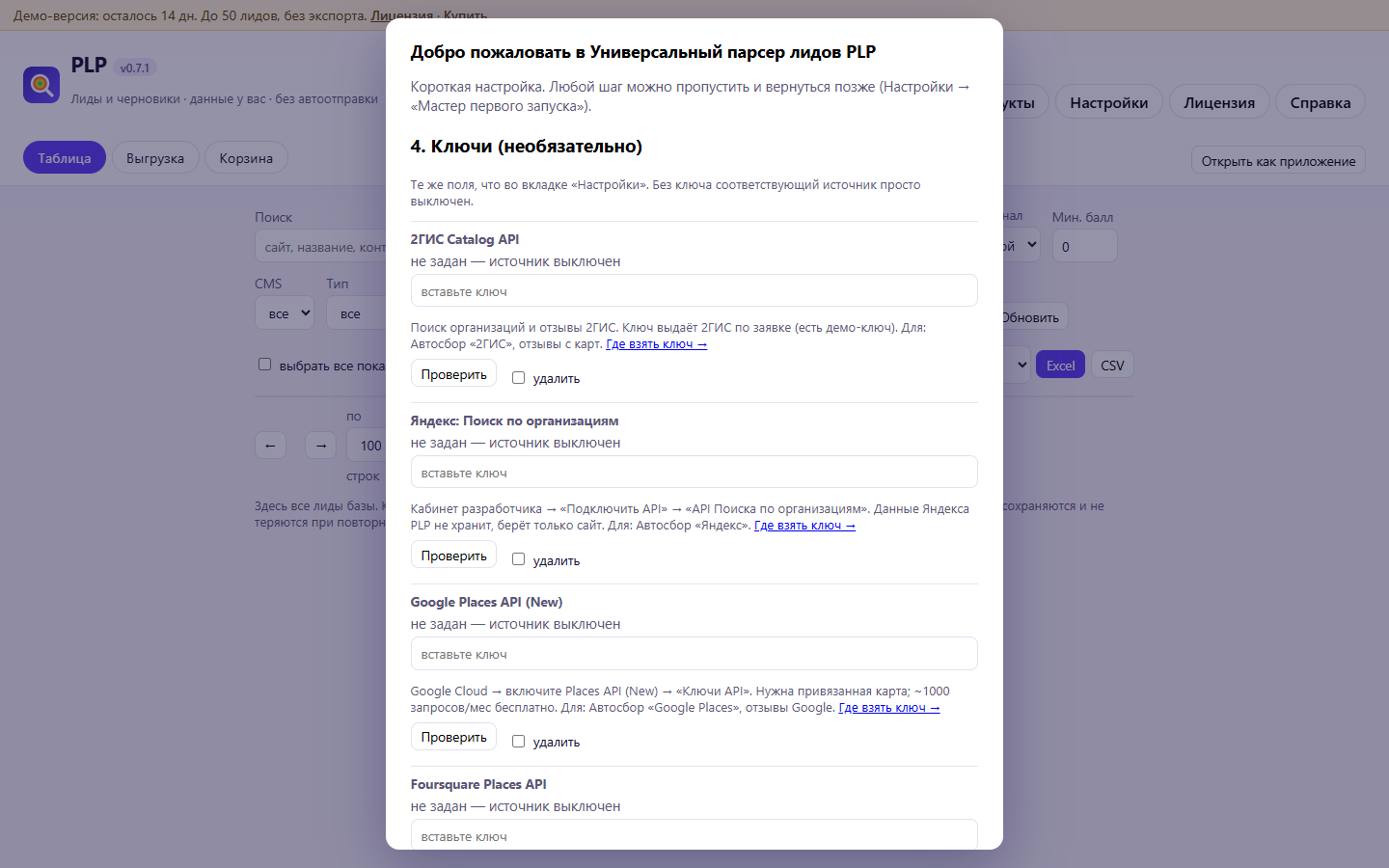
The wizard has four steps. You can skip any step and return later: Settings → "First-run wizard".
- Language. Choose RU or EN for the UI (same as the header switch). Email language follows your templates.
- Project and signature. A project is what you are selling; the signature is appended to emails.
- Mail. Where to connect SMTP/IMAP (see "Email and batch sending").
- Keys (optional). The same fields as in Settings.
4. Settings and API keys
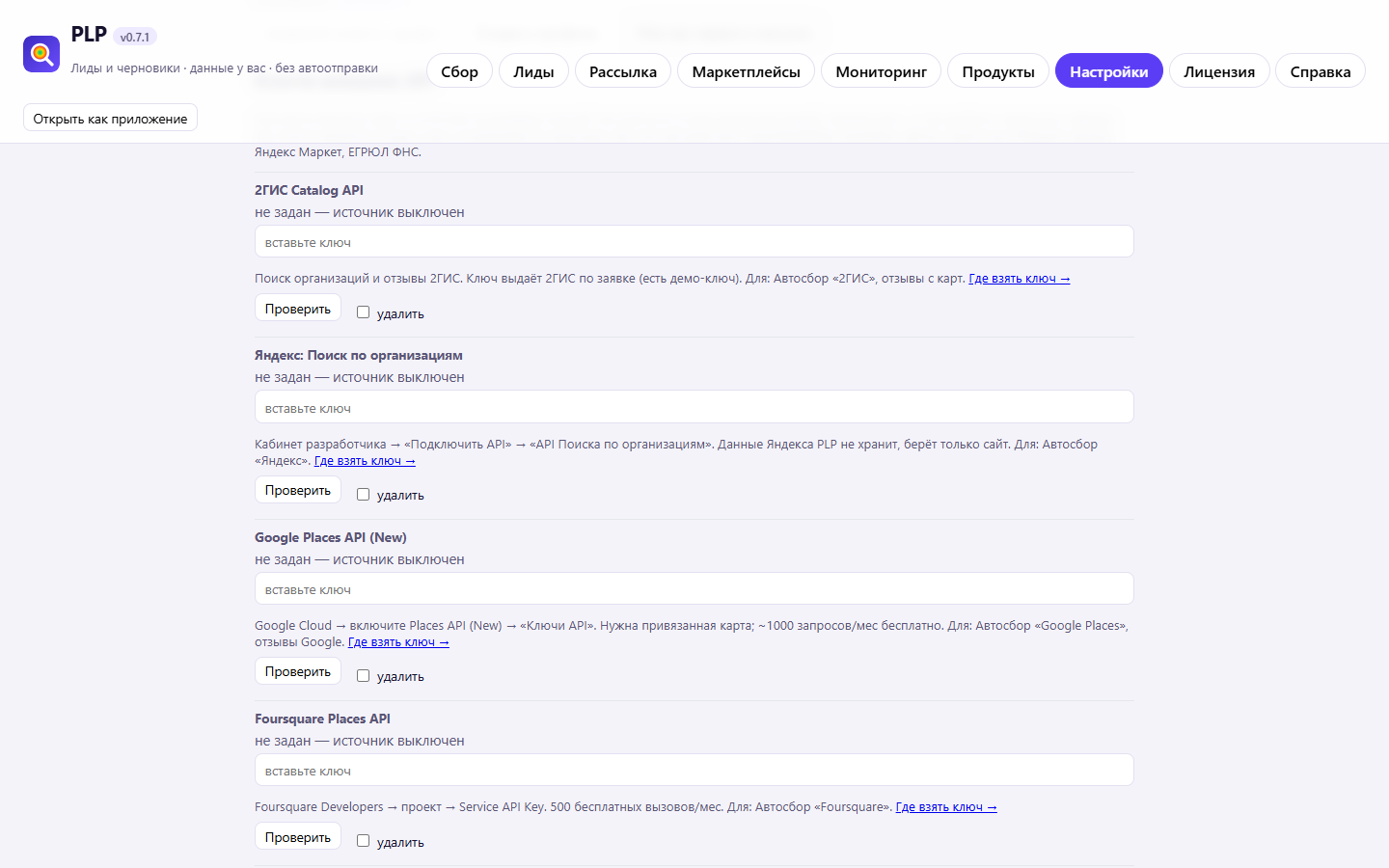
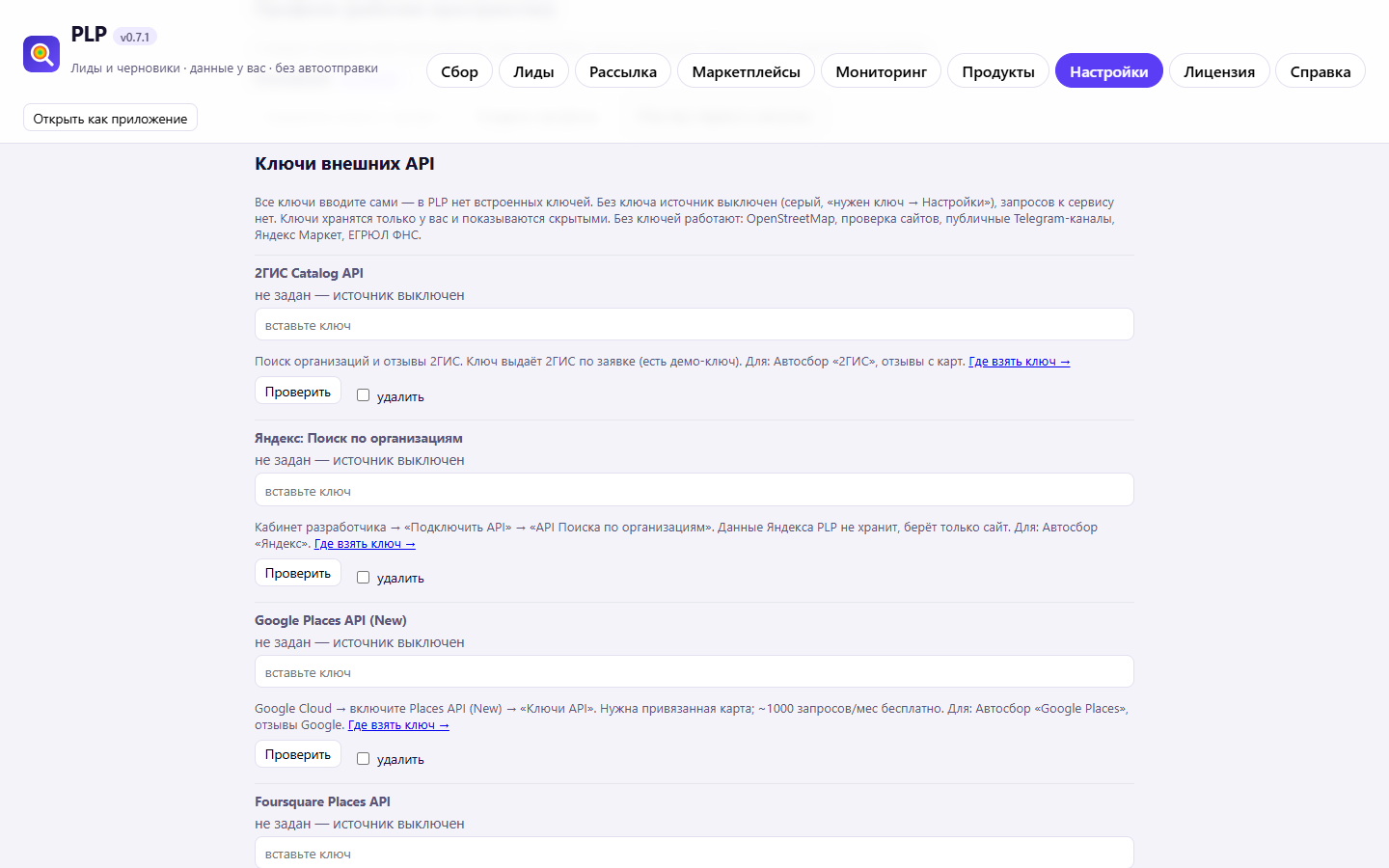
Paste your own keys in Settings → "External API keys". PLP has no built-in keys. Until a key is set, the source reads "not set — source turned off" and is greyed out in discovery with the hint "key needed → Settings". PLP makes no requests to such a service.
- Work without keys: OpenStreetMap, web search, website scanning, public Telegram channels (t.me/s), Yandex Market, the Russian company register (EGRUL).
- 2GIS Catalog API — organizations and 2GIS reviews.
- Yandex Places search — used only to get a website; PLP does not store Yandex data.
- Google Places API (New) and Foursquare Places API — organizations outside Russia.
- VK service key (and optionally a user key) — checking and finding VK communities.
- DaData — enrichment by INN (tax ID). Without it, INN is checked in the public register.
- hh.ru — employers and vacancies. Telegram bot (@BotFather) — a bot that receives inquiries.
- OpenAI / compatible API — key for the AI agent and AI buttons (default Base URL AITUNNEL).
Every field has a "Where to get a key →" link and a "Check" button. Keys are stored only on your computer and shown masked. To remove a key, tick "delete" and save.
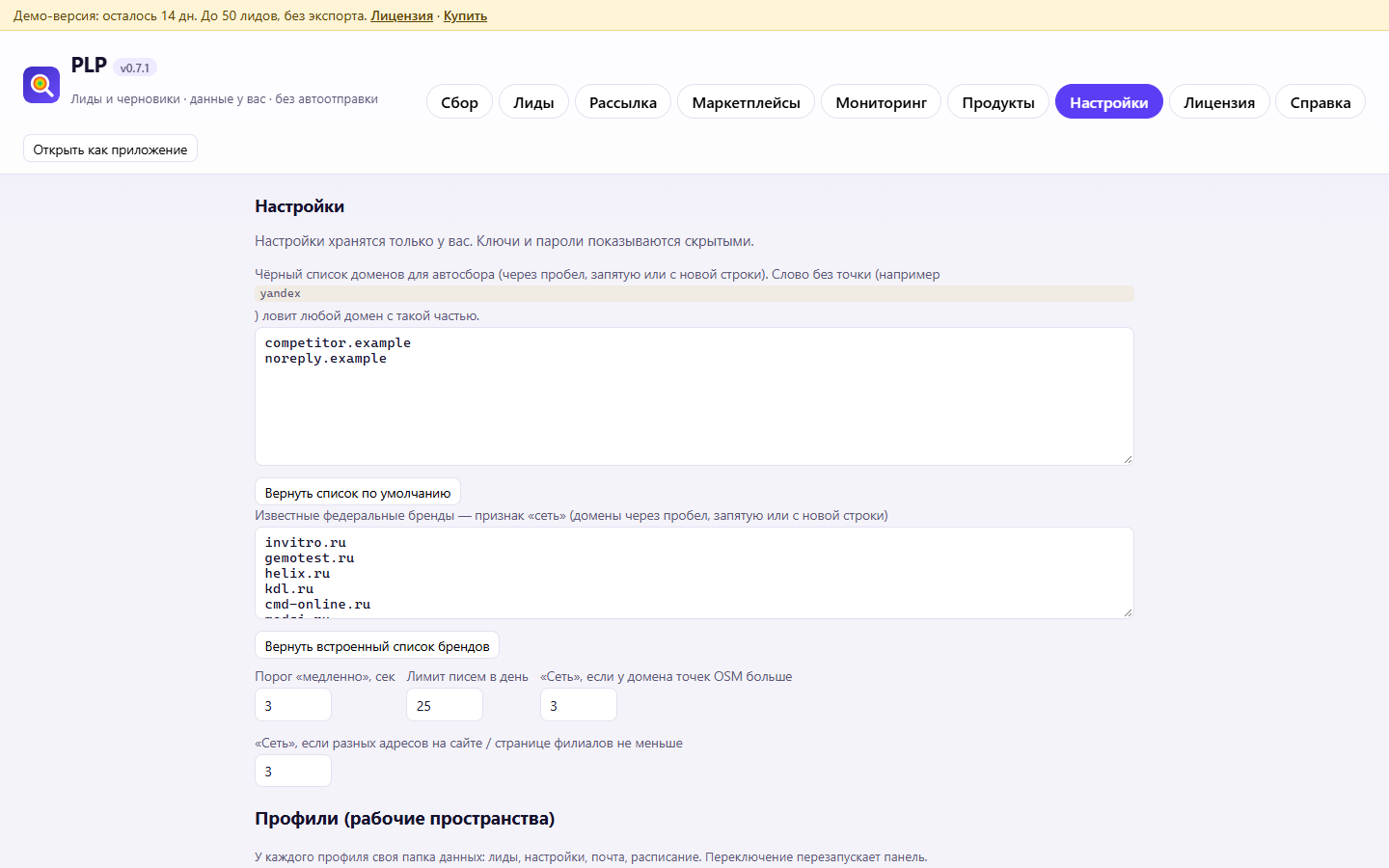
The same tab holds the domain blacklist for discovery, known national brands (chain flag), the "slow site" threshold, the daily email limit and chain thresholds.
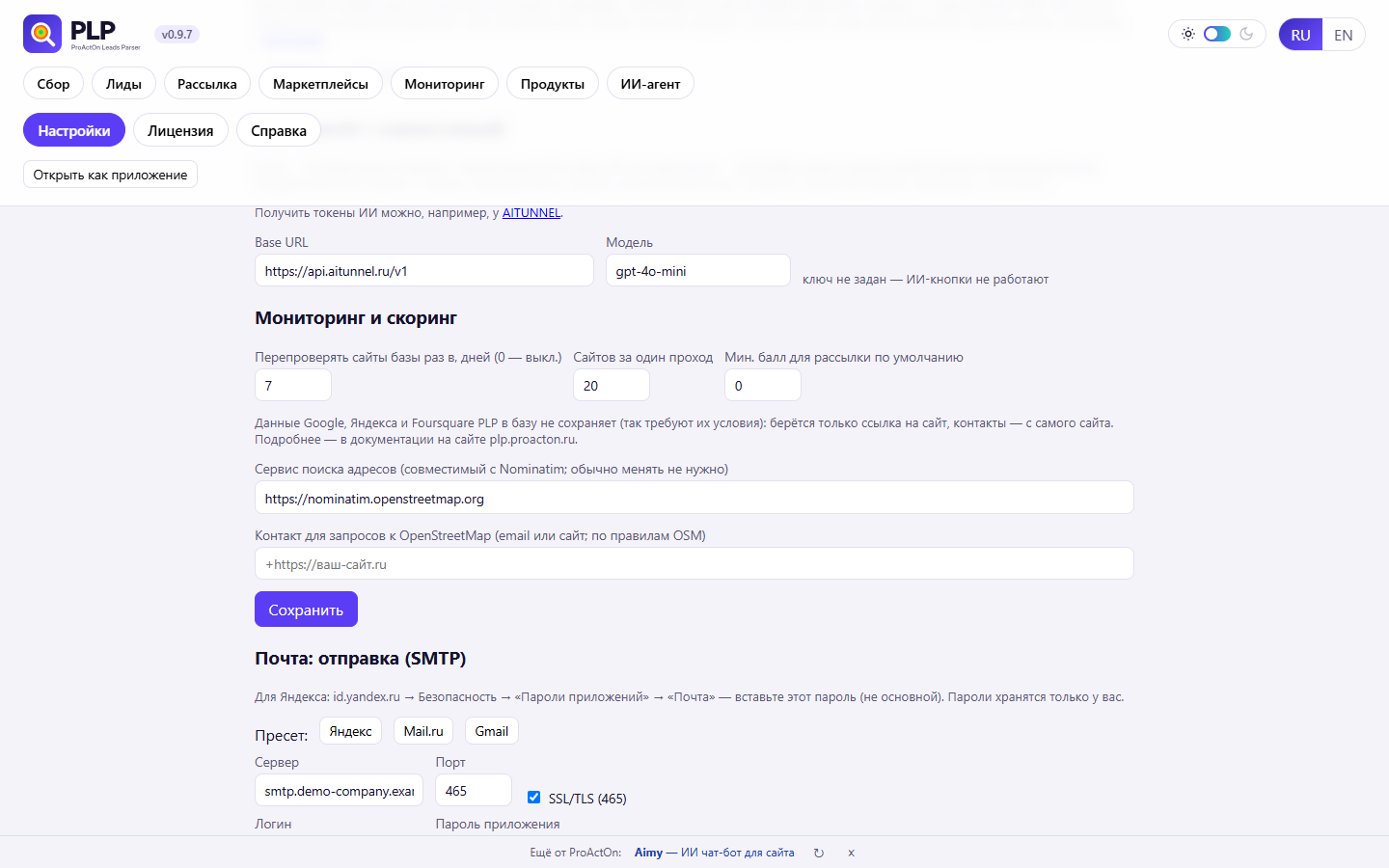
"AI (OpenAI / compatible)": the key comes from the list above ("OpenAI / compatible API"). Default Base URL is AITUNNEL (https://api.aitunnel.ru/v1); you may use any OpenAI-compatible gateway. PLP has no shared ProActOn AI key — every AI call uses yours. You can buy tokens e.g. at AITUNNEL: https://proacton.ru/aitunnel/.
Profiles are separate workspaces with their own leads, settings and mail. Switching restarts the panel.
5. AI agent
"AI agent" is its own top-menu item (not inside Help). It is a chat assistant for the parser and outreach: industries, wording, workflow tips. Answers may be wrong; emails and messages leave only after you confirm. An AI key in Settings is required (e.g. AITUNNEL).
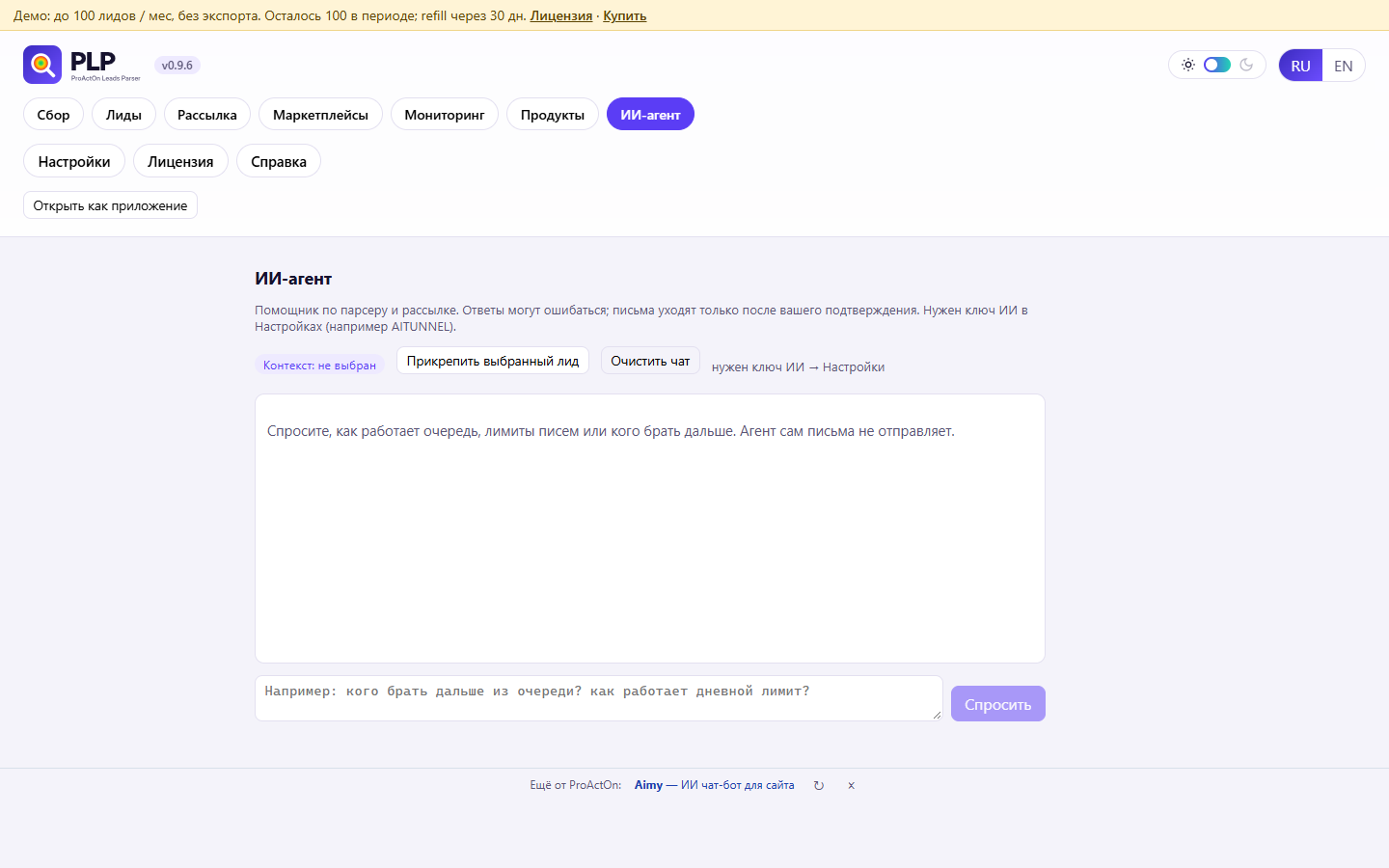
Without an AI key the chat and AI buttons elsewhere stay unavailable — add the key in Settings first.
6. Collecting leads by city and industry
Section "Collection" → "Auto-discover".
- Choose a mode: country / region / city, or point + radius (an address or coordinates and a radius in km).
- Pick a country (249 available), optionally a region and city.
- Pick an industry and how many sites to take (up to 200 per run). Tick "exclude networks" to exclude chains. For a whole country or large region tick "search across the entire country / a large region".
- Tick the sources and click "Find sites".
- Select the sites you want and click "Check and add to the queue". PLP opens each site, finds contacts and scores the lead.
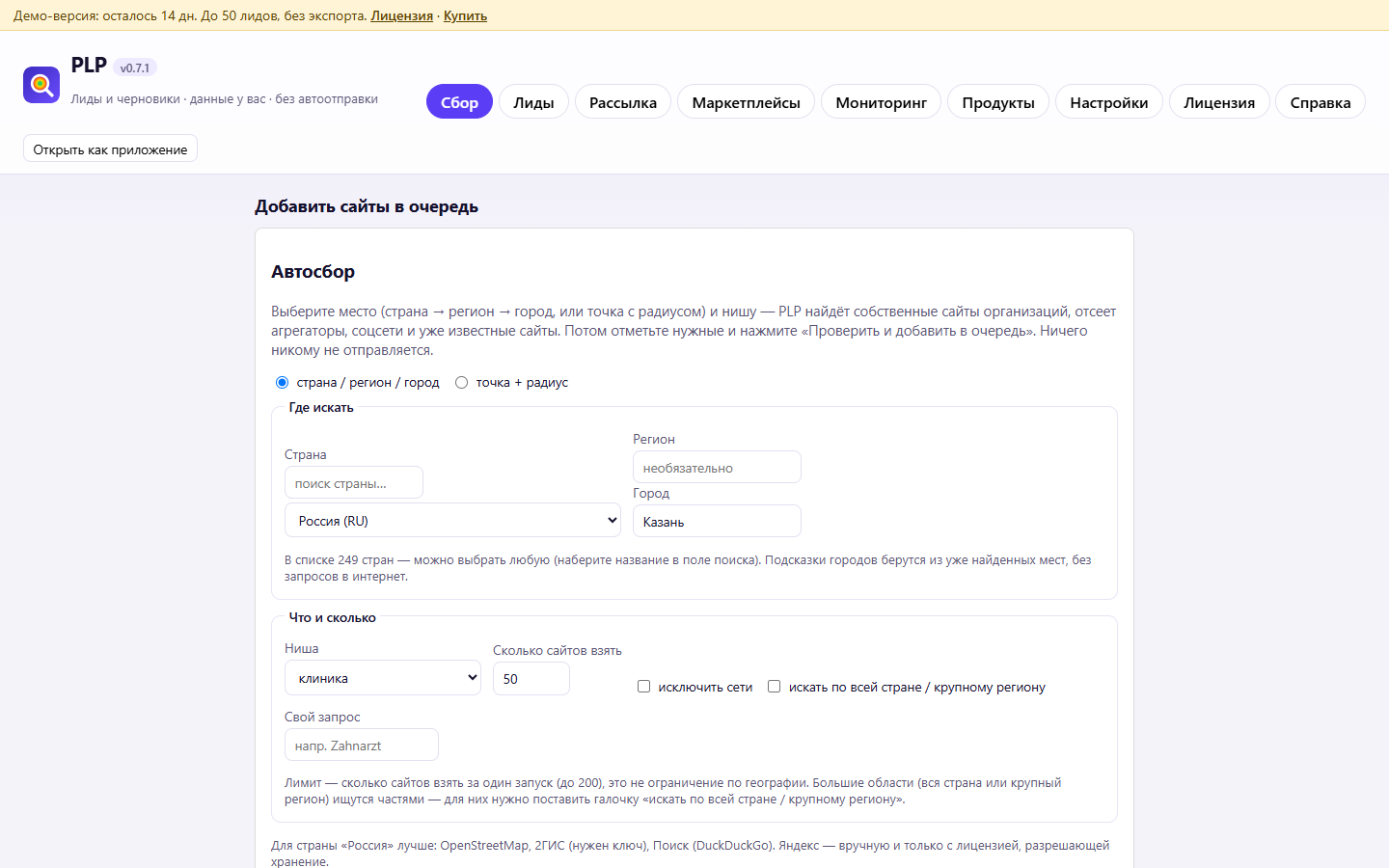
Aggregators, social networks and already known sites are filtered out. You can also paste your own list of site URLs, one per line.
Examples. “Construction companies” is a built-in industry: pick it and a city. “Insurance agents” and “suppliers” are not in the catalog — add them as a custom industry in Products → Industries: enter a name and keywords, then pick a city. The program collects public company contacts. It does not look up job titles unless they appear in the company’s public website data.
7. Sources
- OpenStreetMap and web search (DuckDuckGo) — no key needed.
- 2GIS, Yandex, Google Places, Foursquare — with your key. For Russia, OpenStreetMap, 2GIS and search work best.
- Telegram channels and VK communities: only public organization data (name, description, subscribers, links, contacts, last post date). If a channel has a website, data is merged into that lead; otherwise a "no website" lead is created.
- More sources: marketplace sellers, hh.ru employers (key), Avito / Profi.ru, mentions in public Telegram chats. Chat members are never collected.
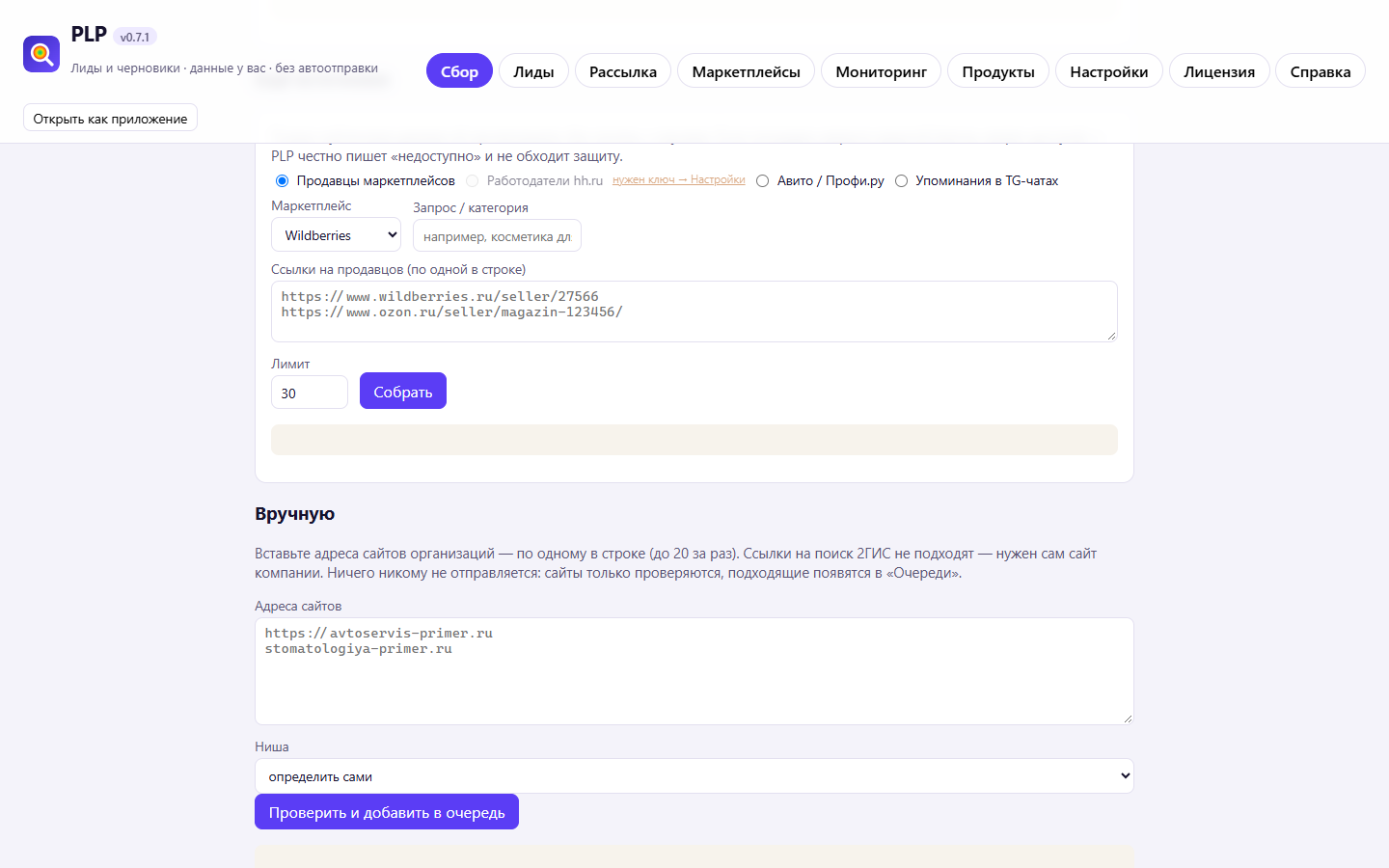
If a site is protected (403, captcha, anti-bot), PLP says "unavailable" and does not bypass it.
8. Lead card and score
"Leads" → "Table" shows the whole database, including leads without contacts. Filter it, choose columns and export. Click a row to open the lead card.
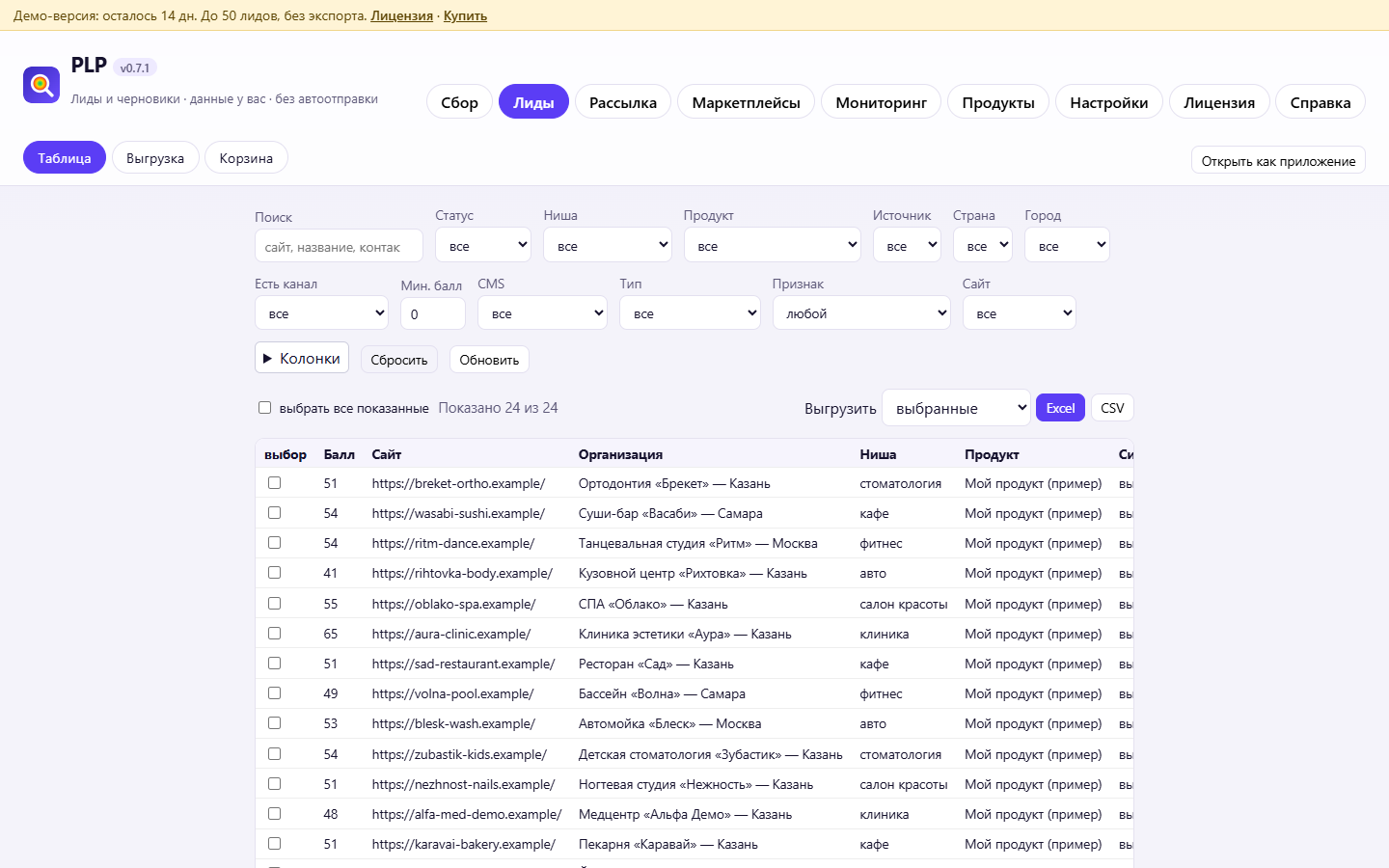
The 0–100 score has three parts: need (up to 50: signals that the company may benefit from an offer — for example no chat or booking, a slow or outdated site, review complaints, open vacancies; for marketplace sellers, a weak rating or listings), activity (up to 30: the site works, email, phone, messengers, recent reviews) and product fit (up to 20). The card explains every point. 70+ is hot, 45–69 warm, 25–44 cool, below that cold.
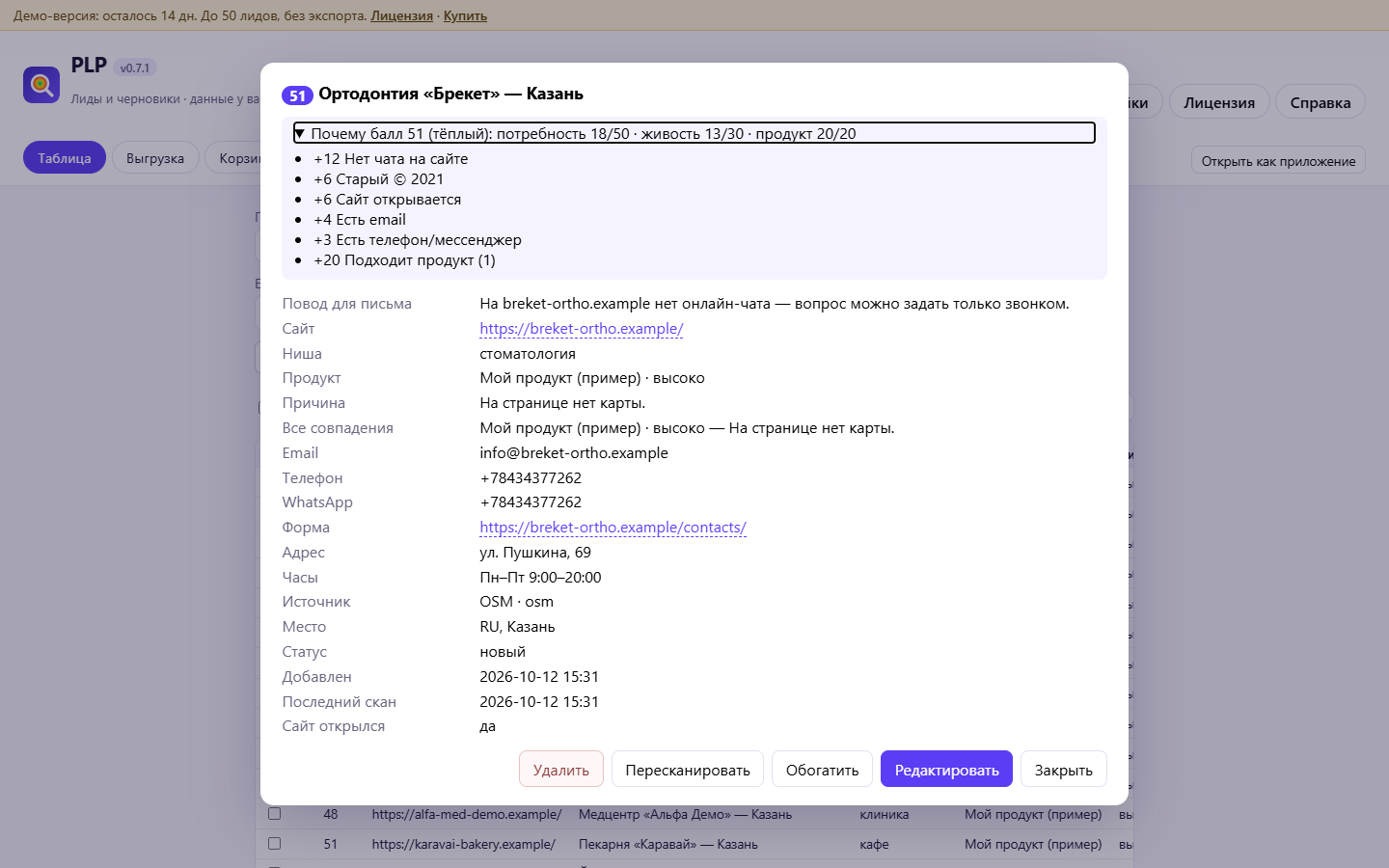
Card buttons: Rescan, Enrich (INN, register, socials), Edit, Delete (to trash). Companies with several addresses or chain wording get the "chain" tag and are hidden by default.
9. Queue and drafts
"Mailing" → "Queue" shows only leads that have something to offer and a contact, sorted by score. Filters: channel, status, industry, project, product, source, country, city, min score, CMS, flag and more.
Click a lead to open the "Draft" tab with ready texts for WhatsApp, Telegram and email, "copy text" and "open wa.me / t.me" buttons and the organization contacts.
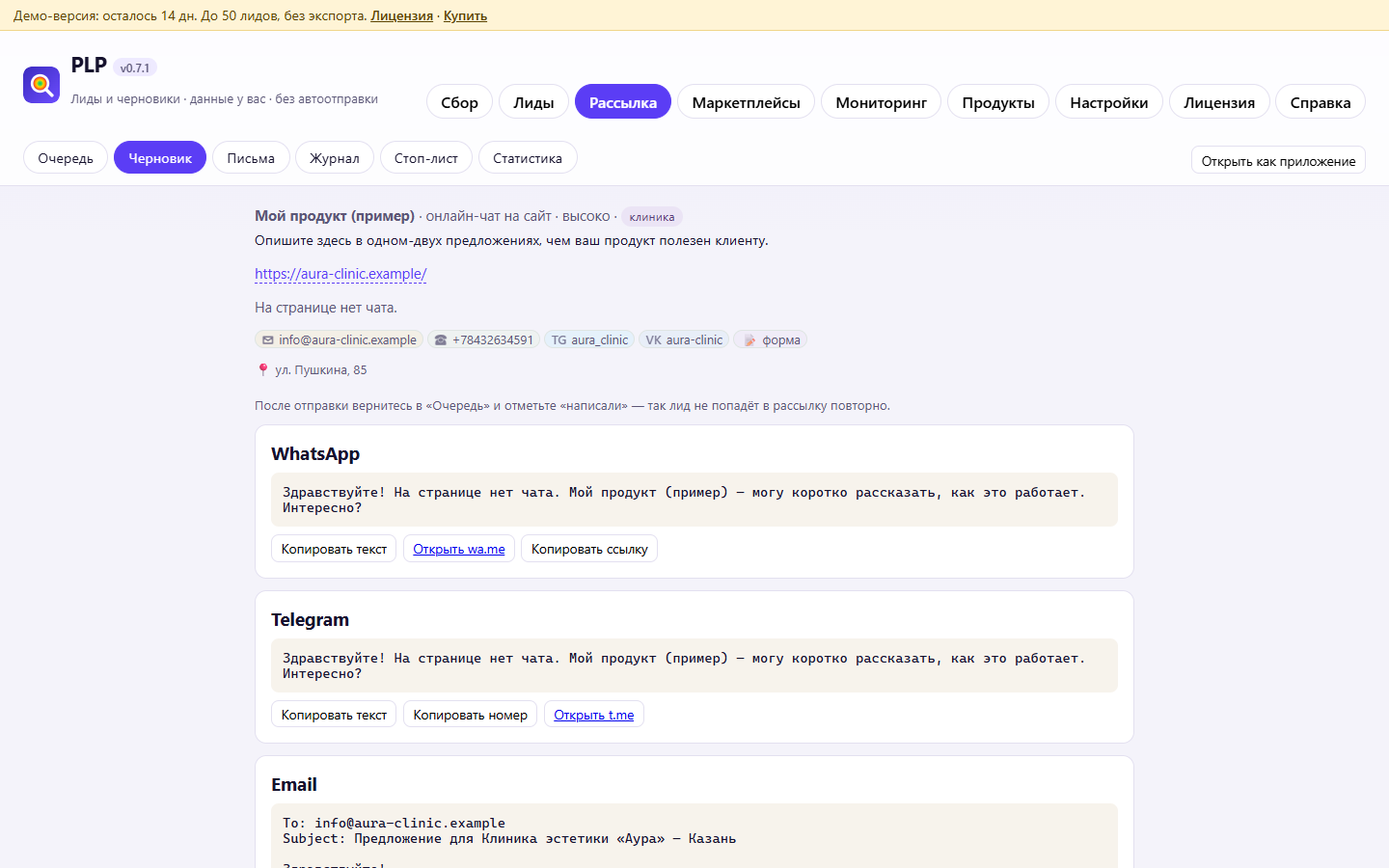
- Open the lead and review the text.
- Copy and send it manually.
- Immediately set the status to "contacted".
Statuses: new, contacted, replied, later, skip. A contacted lead never appears in exports or batches again, so nobody gets a second cold message. Checkboxes let you change status or industry, or delete leads in bulk.
10. Email and batch sending (SMTP/IMAP)
Connect your mailbox in Settings → "Mail: sending (SMTP)" and "Mail: replies (IMAP)". Presets exist for Yandex, Mail.ru and Gmail. Use an app password, not your main password. "Send a verification email to yourself" checks the connection.
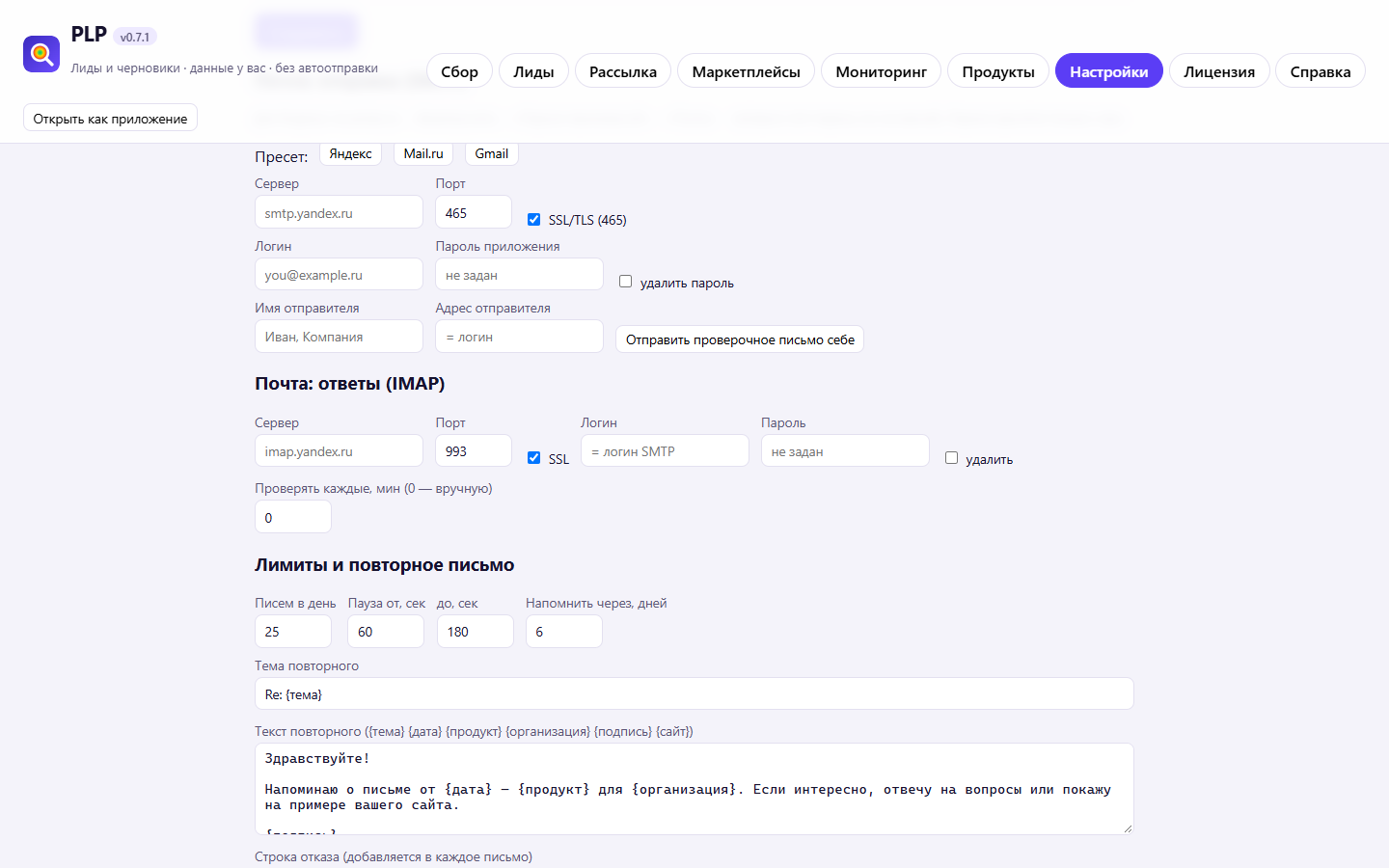
"Mailing" → "Letters": choose project, product, industry, count and min score → "Assemble a batch". Review and edit each email, tick "I have checked the emails and send them manually", then click "Send batch".
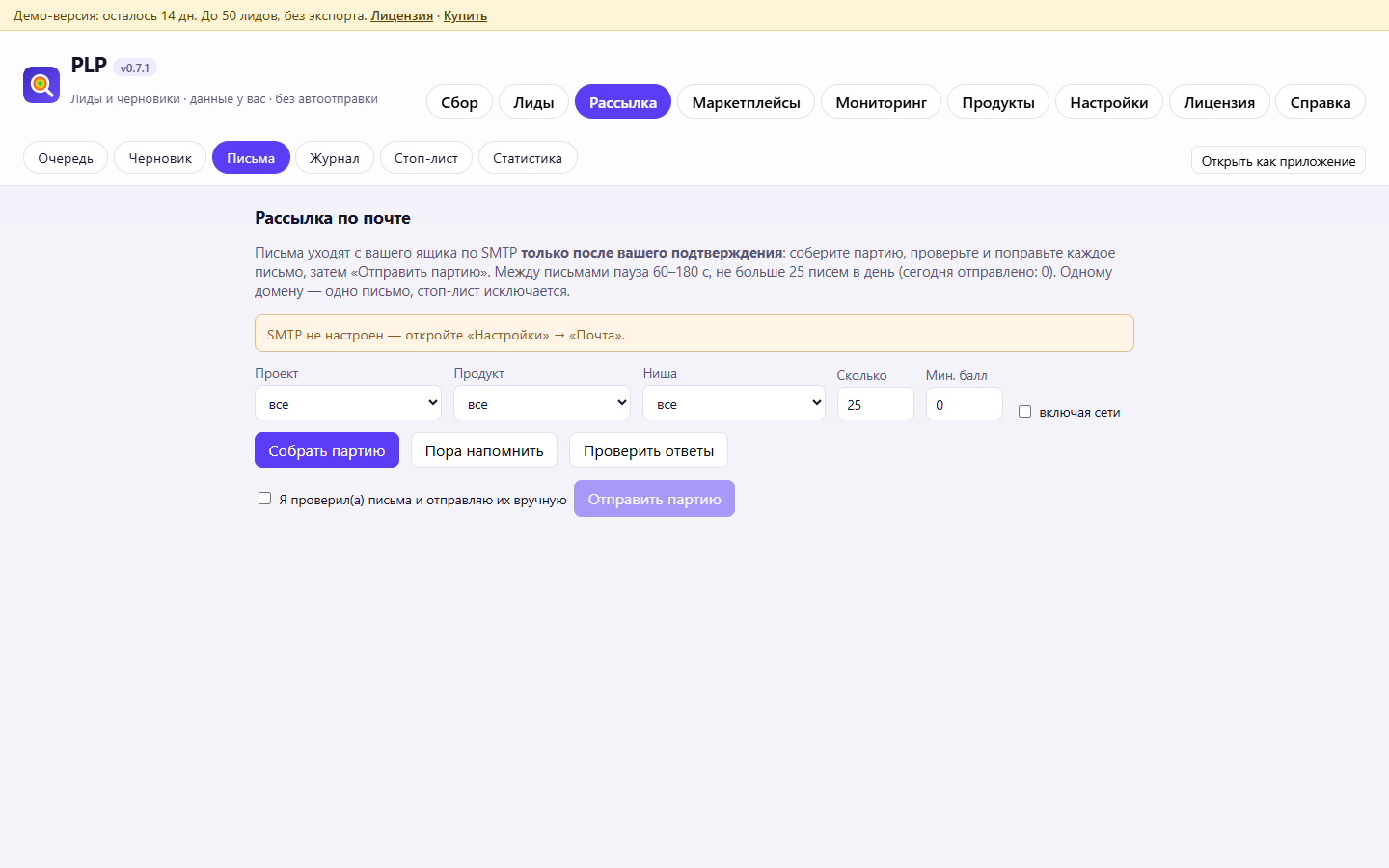
- 60–180 seconds between emails, at most 25 emails a day (you can lower the limits in Settings).
- One email per domain; stop-list addresses are excluded.
- "Check answers" reads your inbox via IMAP and marks replies. "It's time to remind" suggests a follow-up after the set number of days.
- Every email gets an opt-out line.
- "Mailing" → "Log" shows the sending history.
Check your domain deliverability (SPF / DKIM / DMARC) at the end of the mail settings.
11. Stop list
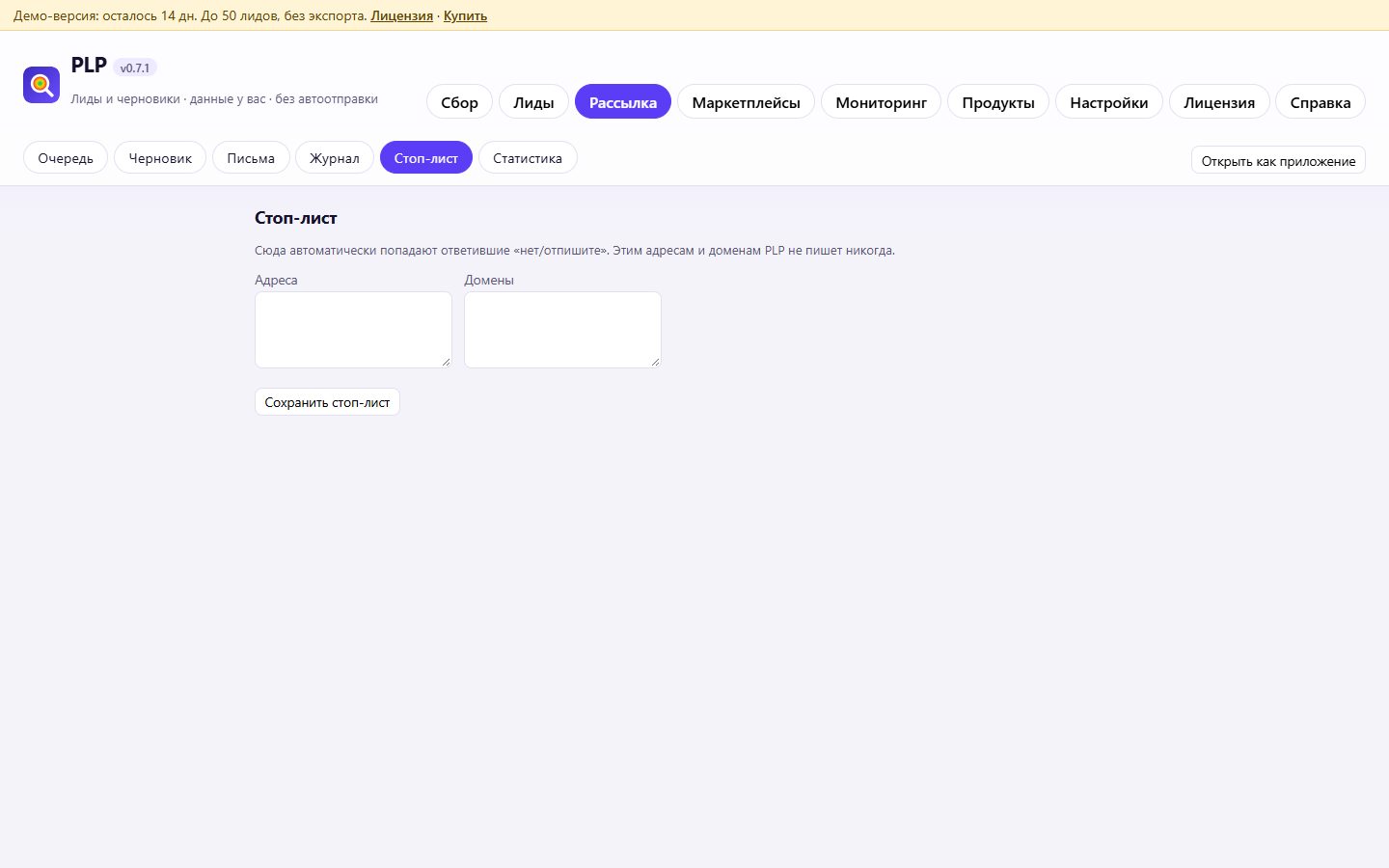
People who answer "no" or "unsubscribe" are added to the stop list automatically. It lives in "Mailing" → "Stop list"; you can add addresses and whole domains manually. PLP never writes to them. Separately, Settings has a domain blacklist for discovery: such sites never enter the database.
12. Export
"Leads" → "Export" builds lists for batch work: choose channels (email, phones, WhatsApp, messengers, socials), products, project, industry, country, city, status and batch size. Download Excel or CSV, then "Mark the batch as written".
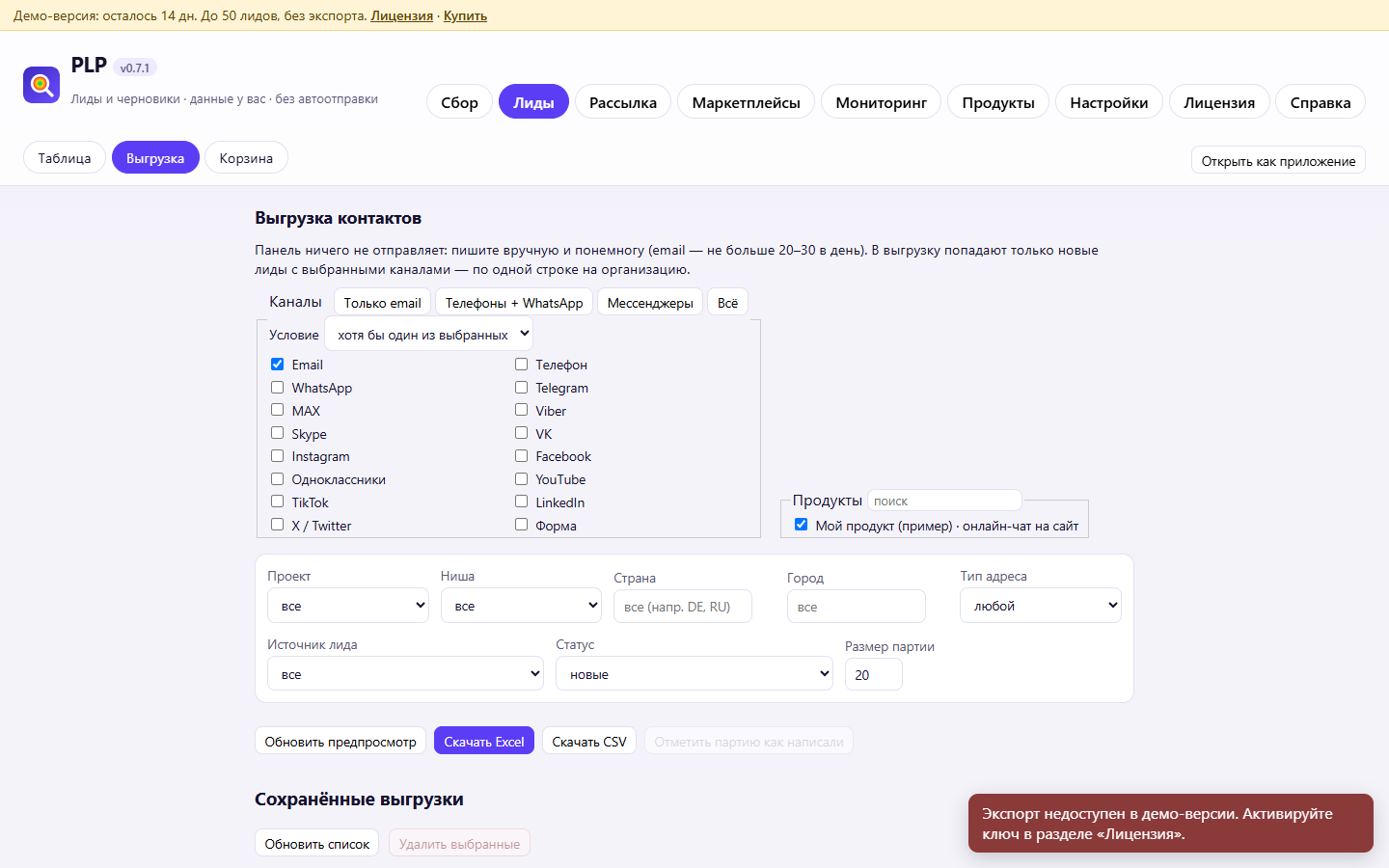
Excel/CSV export works both in the demo and with a license. In the demo the last row of the file is the line “Collected with PLP Demo — plp.proacton.ru”.
13. Loading leads (import)
In the Leads section you can import your own list. Supported formats: CSV in UTF-8 or Windows-1251 with a semicolon or a comma, an Excel workbook (XLSX) and a PLP export file. The program maps columns (company, email, phone, website, city, industry and other fields), checks duplicates by email, phone and website domain, and lets you skip a repeat or merge it into an existing lead.
After the check you see a summary (how many new, duplicate and invalid rows) and can download a report of skipped rows. Imported leads get the source “Import”. You can place them in a chosen project and industry.
In the demo, newly imported leads count toward the 100 new leads / 30 days limit — together with collected ones.
14. Marketplaces
The "Marketplaces" section finds sellers by query or category in the public listings of Wildberries, Ozon and Yandex Market: unique sellers and their listing metrics (rating, reviews, photos, price). Weak listings are a signal that your offer may be useful. Select sellers and click "Add selected to leads".
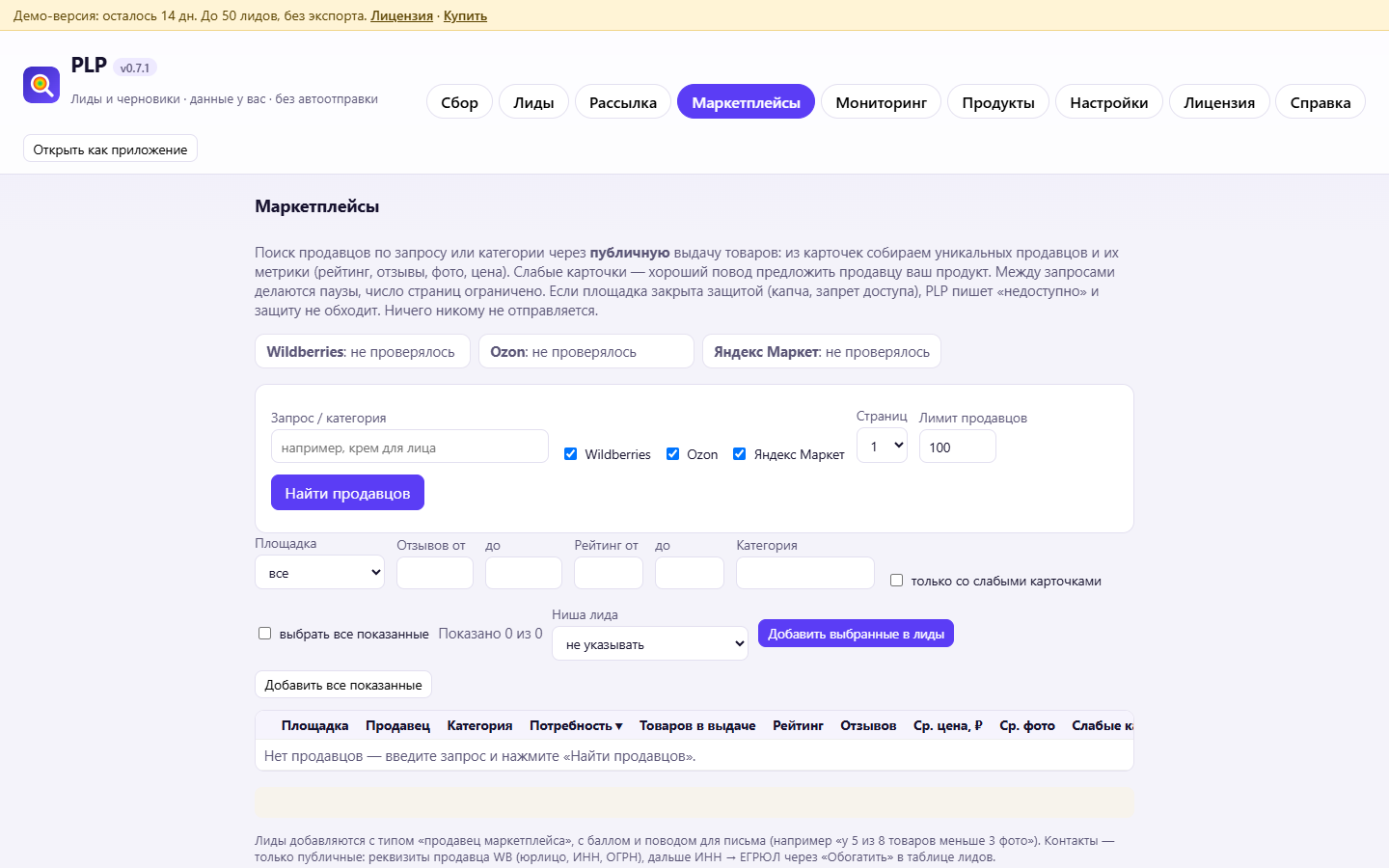
Requests are paced and the page count is limited. If a marketplace blocks access, the status is "unavailable".
15. Schedule and monitoring
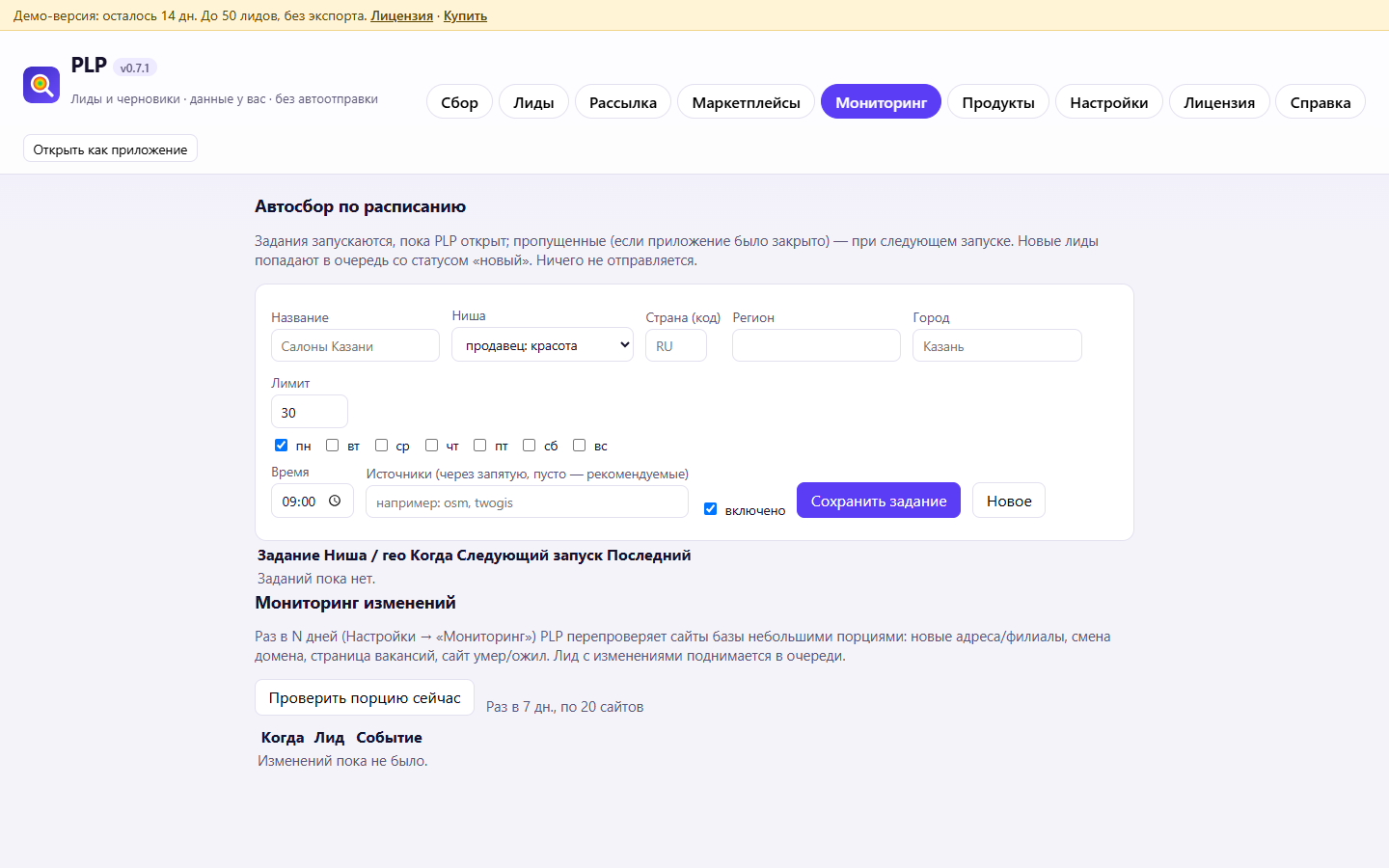
Section "Monitoring". Scheduled discovery: set a name, industry, country, city, limit, weekdays, time and sources. Jobs run while PLP is open; missed ones run on next start. New leads land in the queue as "new". Nothing is sent.
Change monitoring: batches walk the whole database, starting with the sites that have gone the longest without a check. In settings you can change the period, the batch size and the scope (all leads, a project or an industry). Each batch then moves further through the database. There is a “Check all now” command. PLP records new addresses or branches, a domain change, a careers page, and whether the site stopped responding or is back online. If nothing changed, a repeat event is not written. Leads with changes move up in the queue.
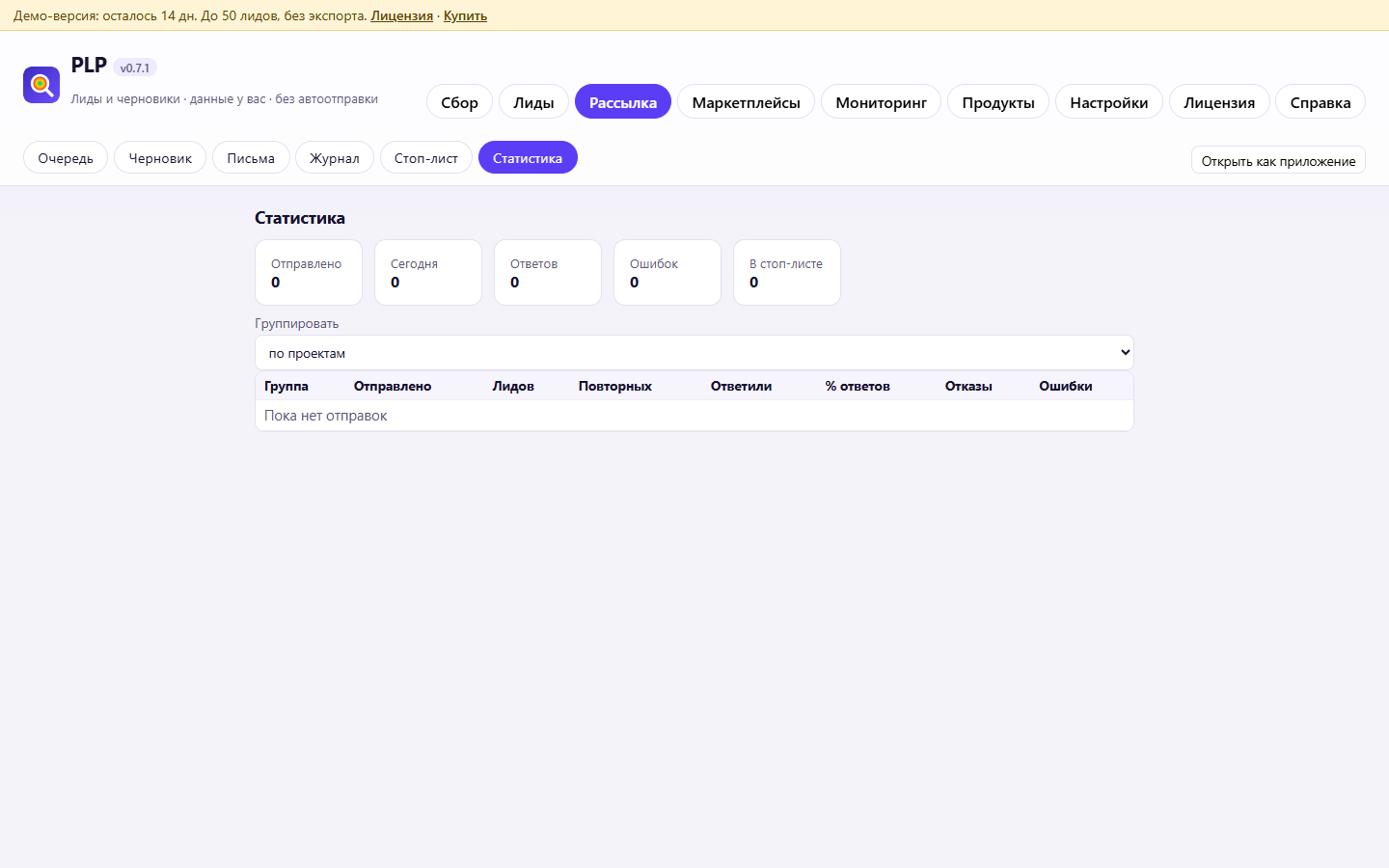
"Mailing" → "Statistics" shows sent emails, replies, opt-outs, errors and the stop list, grouped by project, product or industry.
16. License, demo and activation
Without a key PLP runs in demo mode with no hard day expiry: all features, including Excel/CSV export and import, up to 100 new leads per 30 days (the quota then refills); sending emails is allowed. The License section shows how many leads are left and when the quota refills.
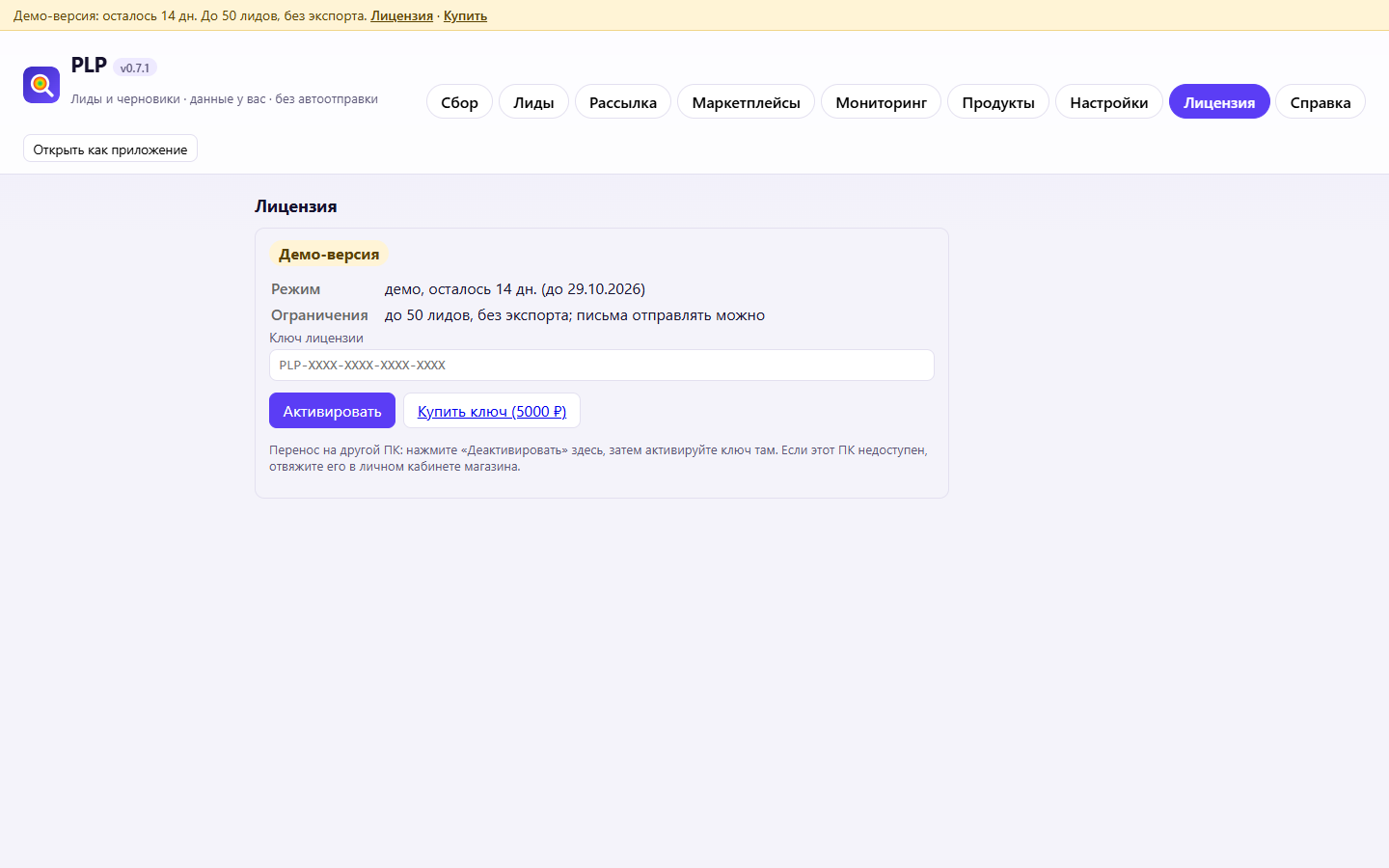
When the quota is used up, new leads are not collected until it refills or you activate a key. Everything else keeps working: collected leads, drafts and emails stay available, and you can view and send them. After activation, unlimited collection is on right away.
Prices: desktop version 5,000 RUB per computer; server version 15,000 RUB (bound to a domain or installation ID). Perpetual license with 1 year of updates.
Lead packs belong to the web version and are not included in a Desktop or Server license: 100 leads — 490 ₽, 500 leads — 2 400 ₽, 2 000 leads — 6 900 ₽, valid for 1 year. The Windows app demo still includes 100 new leads per 30 days with export.
- Buy a key at plp.proacton.ru (the "Buy key" button in the License section leads there). The key is emailed to you.
- Open the "License" section, paste the key PLP-XXXX-XXXX-XXXX-XXXX and click "Активировать" (activate).
- The key is bound to this computer. PLP re-checks it weekly; offline it keeps working for 30 days.
Moving to another PC: click "Деактивировать" (deactivate) on the old computer, then activate on the new one. If the old PC is unavailable, unbind it in your store account or write to info@proacton.ru.
17. FAQ
- The homepage shows a sample result (construction companies, Kazan). The companies in the example are fictional; it is not a live database.
- Is this a parser of Avito listings, Yandex Maps, or social-media goods? — No. PLP finds companies and their public contacts for email outreach. Avito and Profi.ru are used only as public company pages, not as a dump of listings.
- A source is grey — no key set. Add your key in Settings → external API keys.
- A site shows "unavailable" — it is protected or not responding. PLP does not bypass protection.
- A lead is not in the queue — no contacts, nothing to offer, or it is a chain. Check the lead table.
- Emails do not go out — test SMTP and the app password with "Send a verification email to yourself", check the daily limit and stop list.
- Export is empty — check the export filters (channels, industry, city, status): leads marked as contacted are never exported again.
- Can I import my own list? — Yes. In the Leads section, import a CSV file (UTF-8 or Windows-1251, semicolon or comma), an Excel workbook (XLSX) or a PLP export file. You can map columns by hand; duplicates are checked by email, phone and website domain (skip or merge). After the check you get a summary and a report of skipped rows. The source of these leads is “Import”. In the demo, newly imported leads count toward the 100 leads / 30 days limit.
- AI does not answer / AI buttons are grey — no key. Settings → "OpenAI / compatible API", default Base URL AITUNNEL; tokens: https://proacton.ru/aitunnel/.
- Detailed help and contacts — bottom menu "Help"; do not confuse it with "AI agent".
- What is the web version? — PLP in the browser, with no install. Sign in through your account, “Web version” tab. Details are in the “Web version” section and on the web version page.
- How do I sign in to the web version? — Sign in to your account on plp.proacton.ru and open the “Web version” tab. The app at app.plp.proacton.ru:8444 opens under the same account.
- What is charged as a lead in the web version? — 1 lead is one company with a verified email or phone. Empty results, chains, aggregators and duplicates are not charged. Packs: 100 leads — 490 ₽, 500 — 2 400 ₽, 2 000 — 6 900 ₽, valid for 1 year. 25 starter leads are given once per site account.
- How does the web version differ from the Windows app? — It has a separate balance in the browser. The Desktop demo still includes 100 new leads per 30 days with export; Desktop and Server licenses stay as they are. The free Companion app connects to Desktop, Server and the web version.
- Is there a mobile app? — Yes, the free PLP Companion for Android. It connects to Desktop, Server or the web version. For the web version: in PLP Web go to Account → “Phone / Companion” → “Connect phone”, then scan the QR code or enter the code (once, 5 minutes). On the phone you get the leads balance, results and leads, can start a search, and get a notification when a search finishes (no names or contacts). With Desktop and Server it pairs with a one-time code from the panel. Details are in the Companion section.
- Support: info@proacton.ru.
18. PLP web version
The web version is PLP in the browser, with no app to install. Company search works by industry and city, with help from AI: describe who you are looking for. Details and prices are also on the PLP web version page.
How to sign in
- Create an account on plp.proacton.ru, or sign in if you already have one.
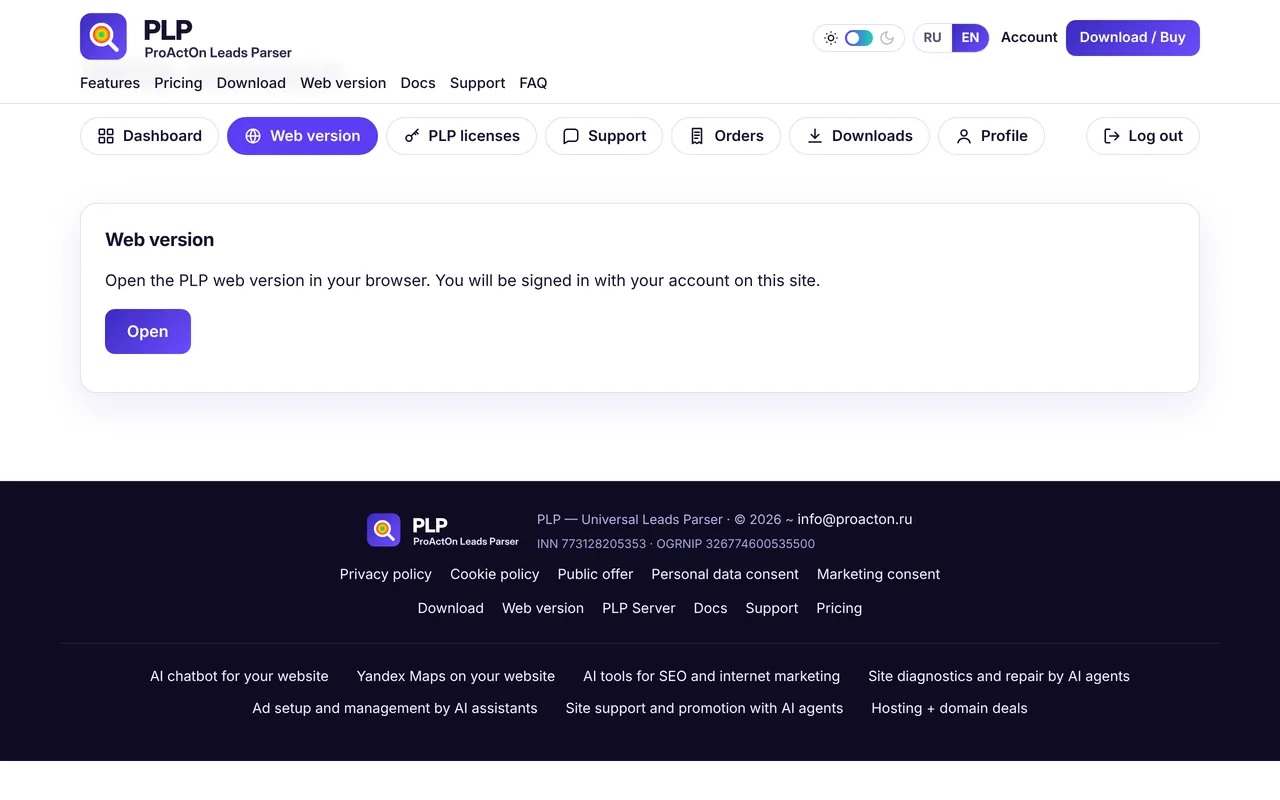
- In your account, open the “Web version” tab — the app opens under the same account. Address: app.plp.proacton.ru:8444. You do not register in the app separately.
- Start a search by industry and city.
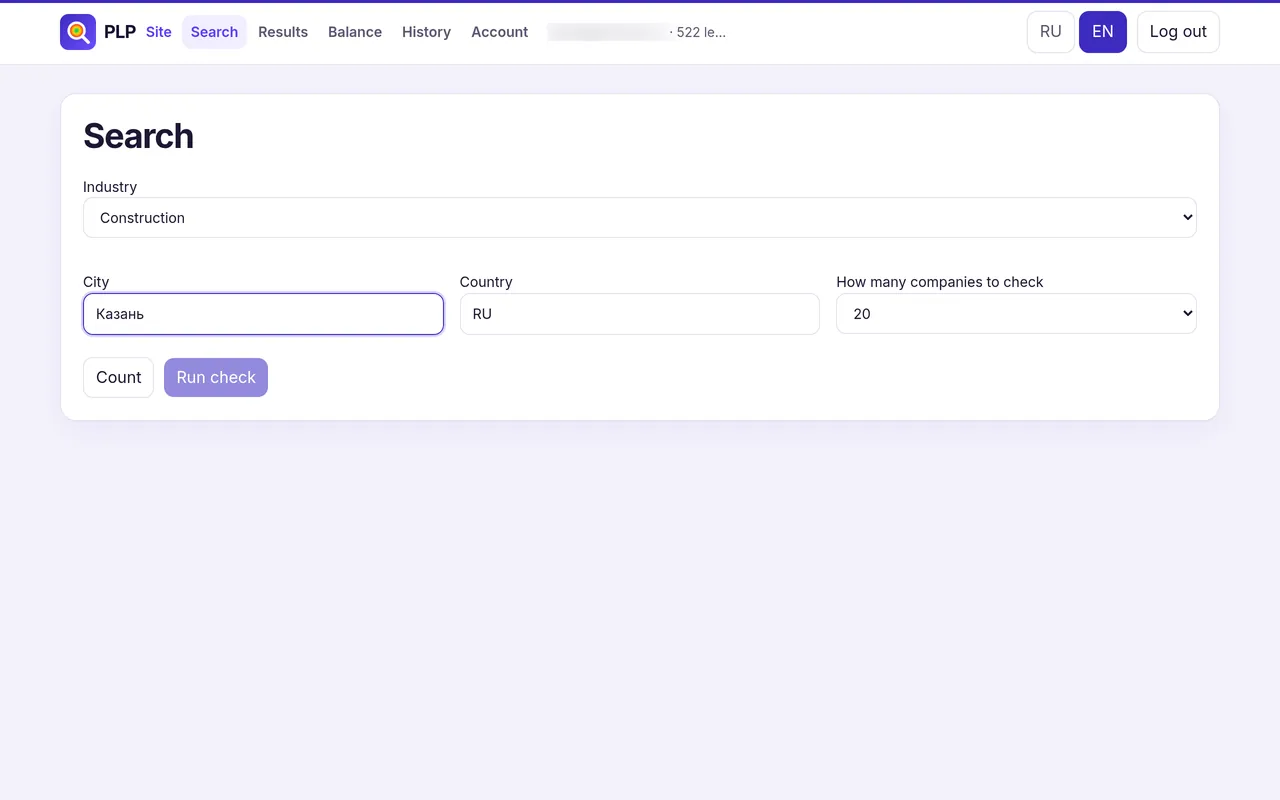
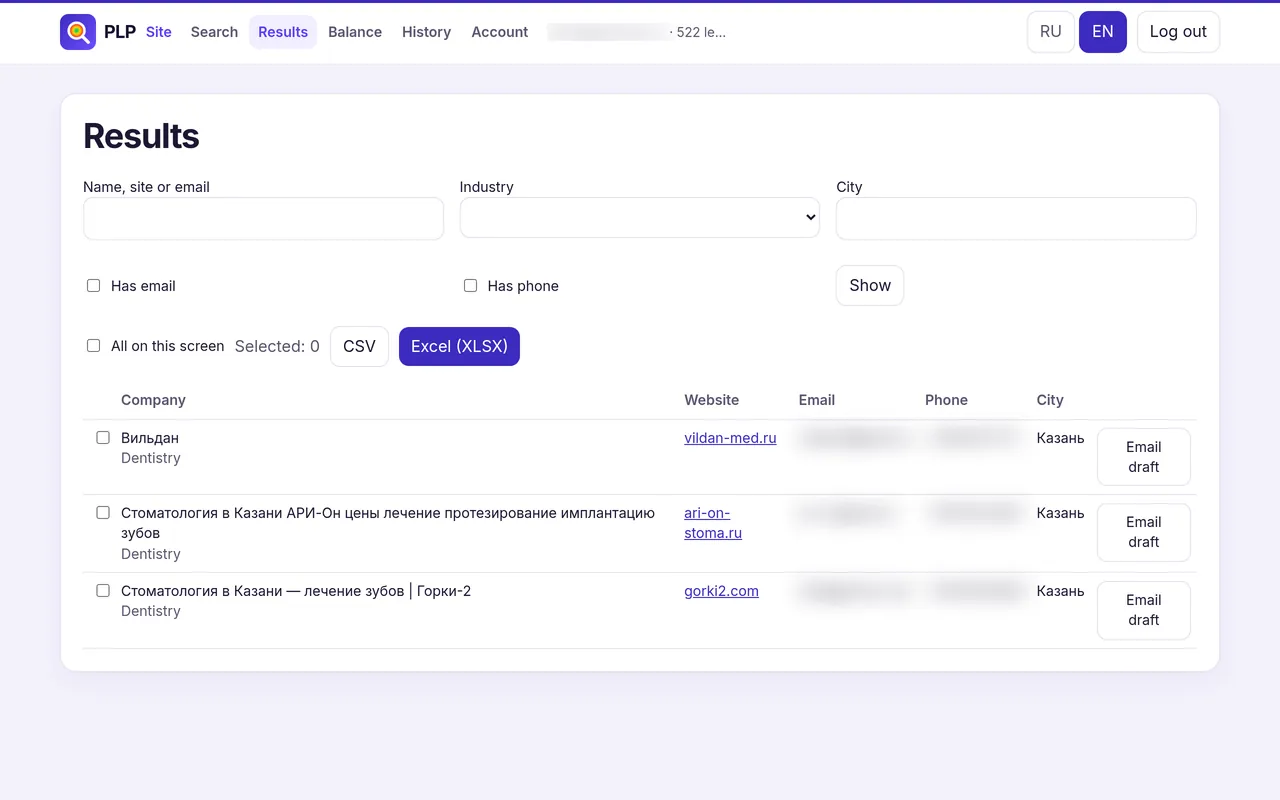
On first use, 25 starter leads are credited once per site account. This is a separate balance, not the Windows app demo quota.
Packs and validity
100 leads — 490 ₽, 500 leads — 2 400 ₽, 2 000 leads — 6 900 ₽. Pack leads remain valid for 1 year from the date they are credited. You can buy a pack on the site, from your account, or from the web version page.
What is charged
1 lead is one company with a verified email or phone number. You are charged only for a company you can actually contact.
You are not charged for empty results with no working contact; chains and aggregators (directories, general showcases and platforms that are not a single company); or repeat cards of the same company (duplicates).
This is different from cheap databases and map parsers, where you usually pay for every row in the export — including empty records, duplicates and listings without a real contact. A pack includes only companies you can email or call.
Difference from the Windows app
The web version does not replace Desktop or Server. The Windows app demo still includes 100 new leads per 30 days with Excel and CSV export. Desktop (5 000 ₽) and Server (15 000 ₽) licenses remain perpetual. The free Companion app connects to Desktop, Server and the web version. How to pair the phone is in the Companion section.
19. PLP Companion
PLP Companion is a free Android app. It connects to PLP Desktop, PLP Server or the PLP web version. No separate license is needed. Download it from the Download page, version 0.3.3, Android 8+, direct APK.
Connecting to the web version
- In PLP Web go to Account → “Phone / Companion” → “Connect phone”.
- Scan the QR code or enter the code. The code works once and lasts 5 minutes.
On the phone you see the leads balance, results and leads, and can start a search. When a search finishes, you get a notification — with no names or contacts. The data is in the PLP Web account.
Connecting to Desktop or Server
The app still pairs with a one-time code from the program panel. The data stays on your PLP installation.